User Document
Step 1: Servev.com will create an admin account for the School Admin and an email will be sent with a PIN to reset and login.
Step 2: Admin will have to click this link and activate the account. This link can be used to reset password as well.
Step 3: Admin will go to the link here to create users for your school account account.
Step 4: Click Admin section in the left menu and click "Authorized Users".
Step5: Click the "Add Authorized Users" button at the top right corner of this page.
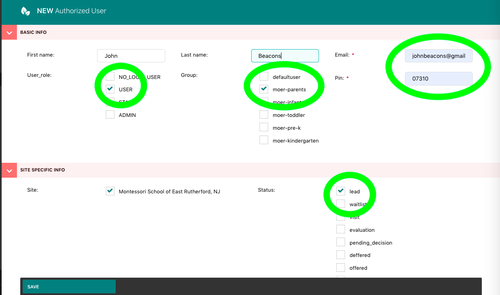
Step 6: Enter one Parent's email-id. Check the following options: User Role as "USER, Status as "lead", Sitegroups as "Parents". Continue this step for all the parents in the school. This is all you need to do authorize parents to use this portal.
Step 7: Parents will receive an email to activate their account and create student enrollments.